Import your snippets
Bring the snippets you already have into Makro from another text expander's export file.
Open the Makro popup and click Settings.
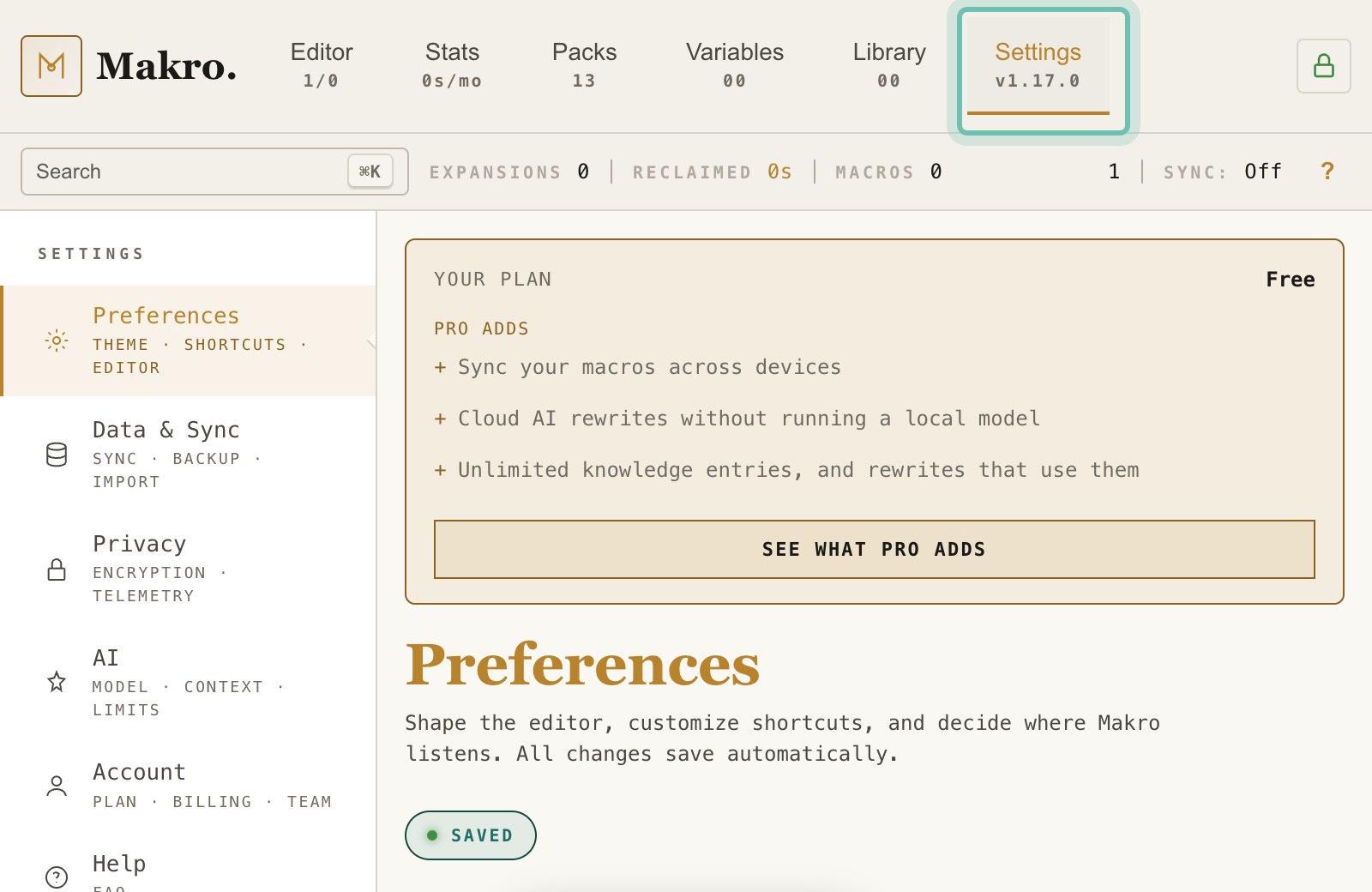
Choose "Data & Sync". The "Migrate from another tool" section lists the formats Makro can read.
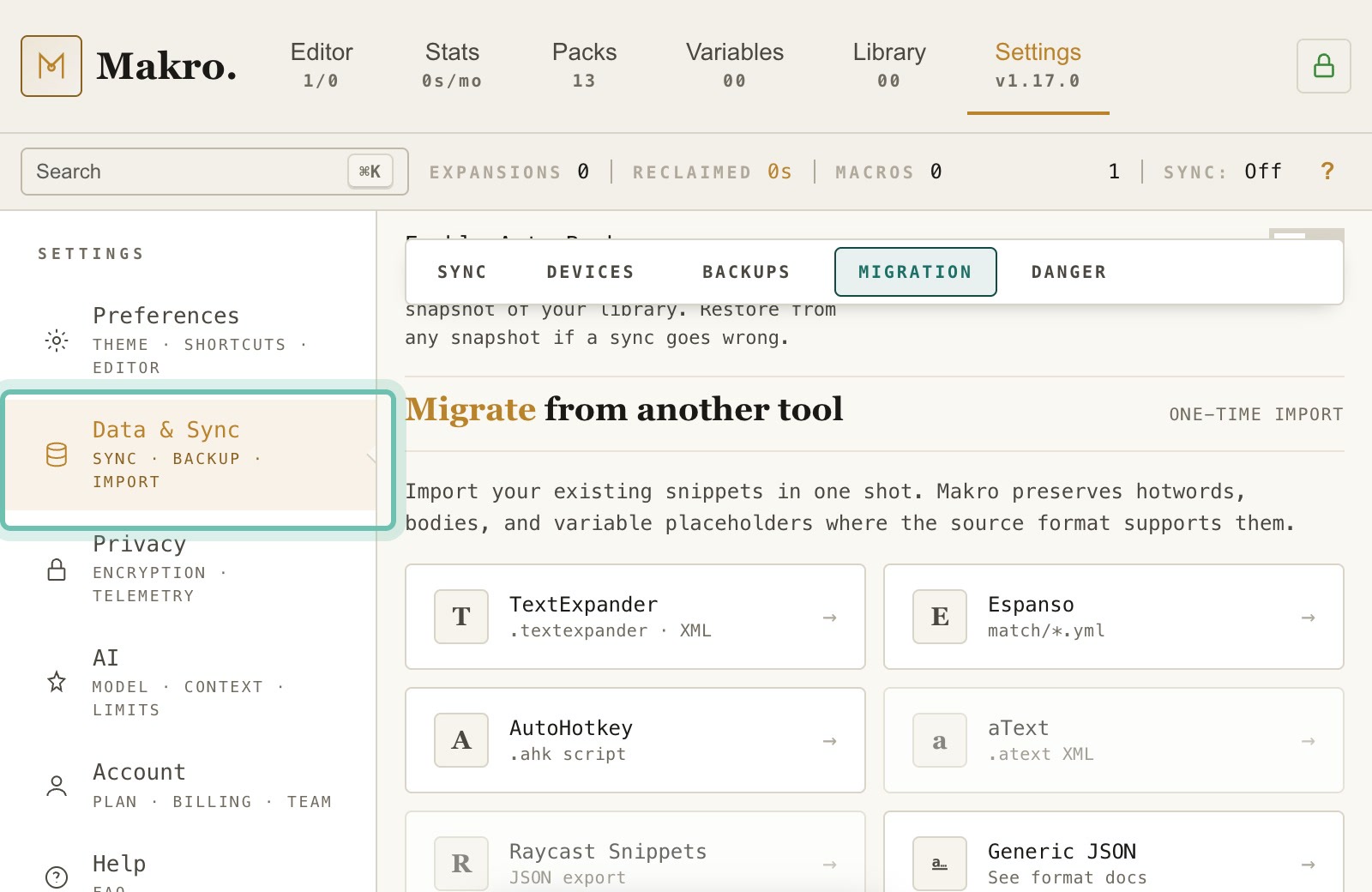
Pick the tool your snippets come from. This example uses a TextExpander CSV export.
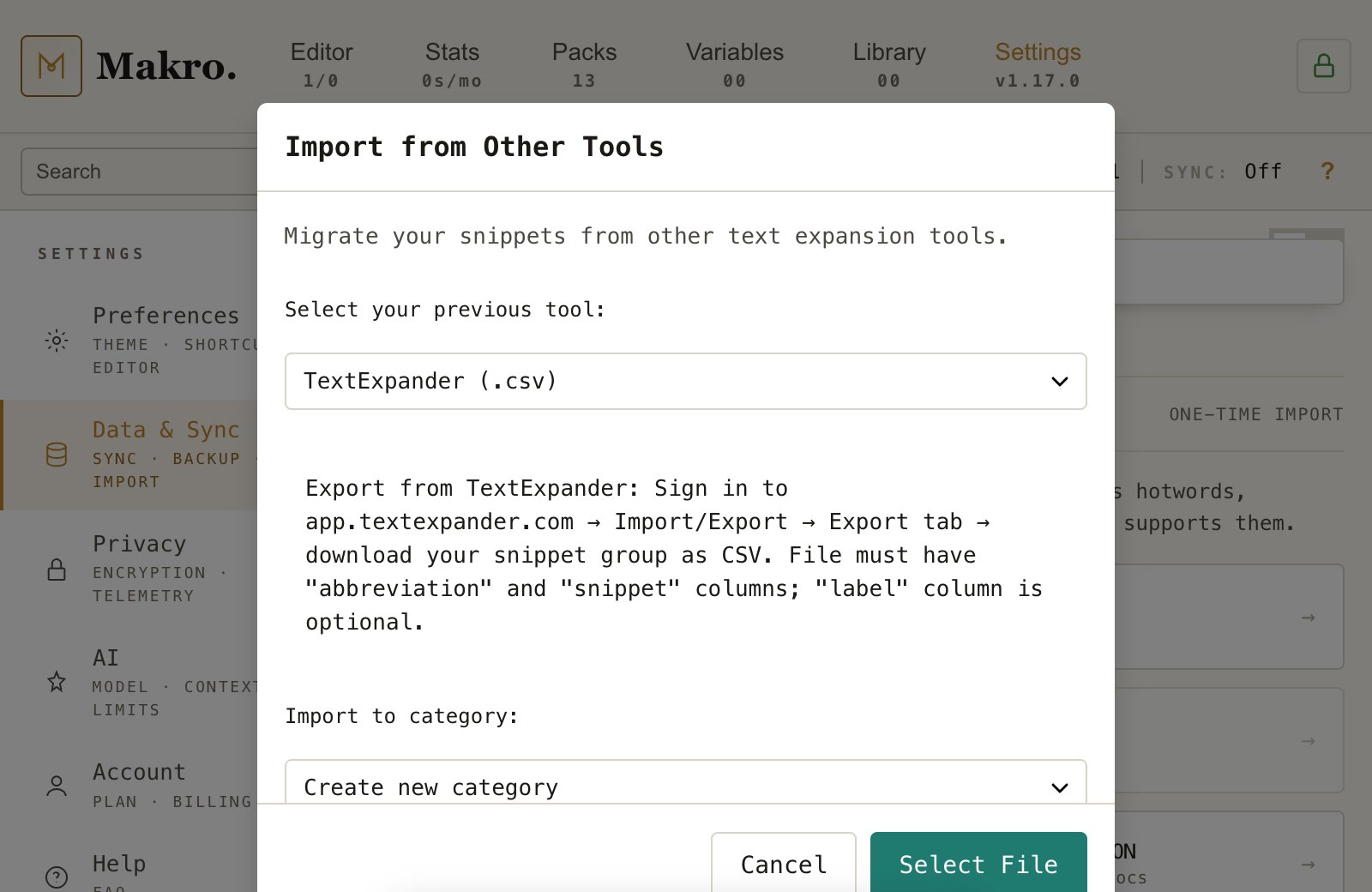
Click "Select File" and choose the export file you saved from that tool.
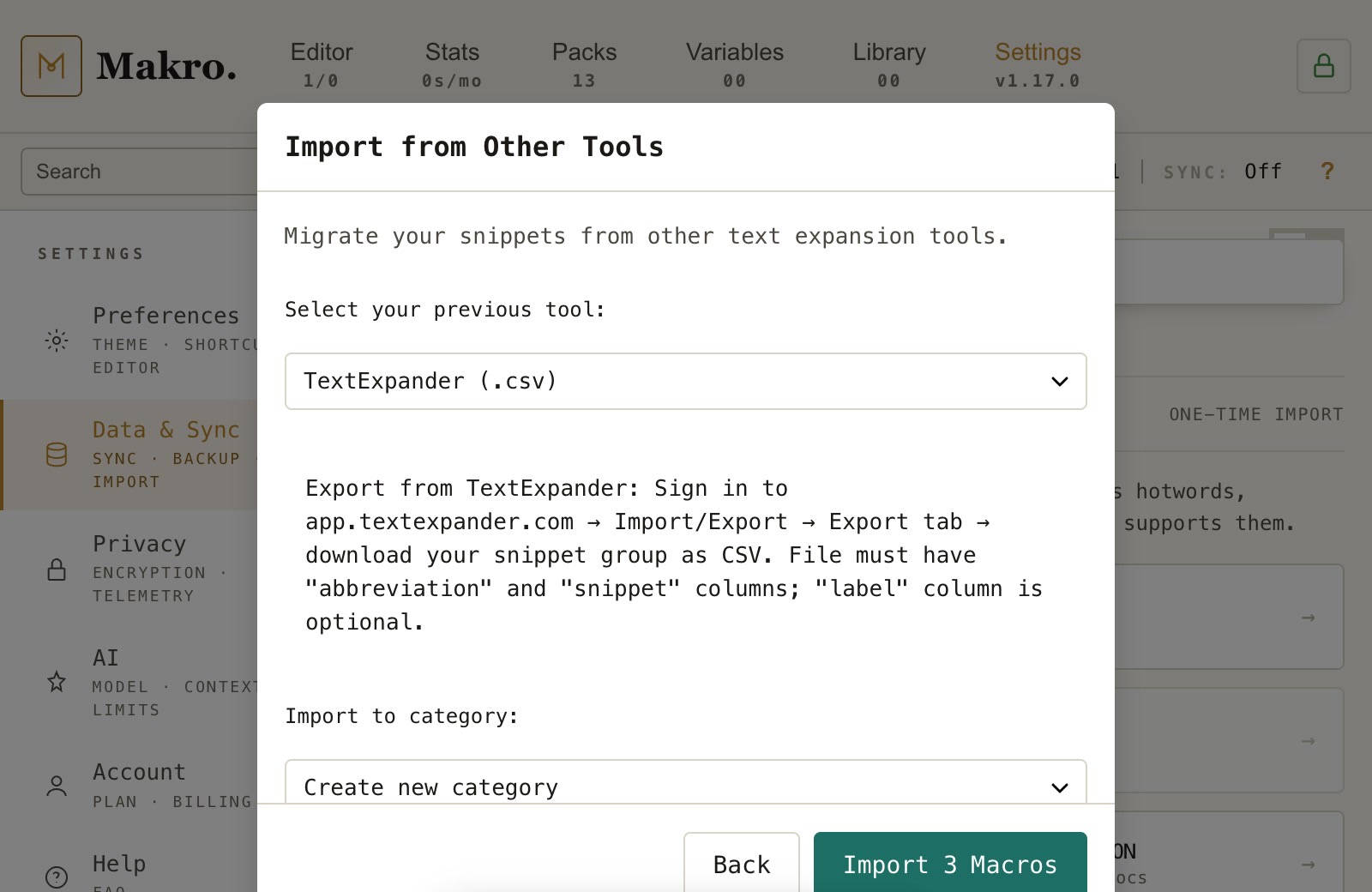
Makro lists the snippets it found before saving anything, so you can check them.
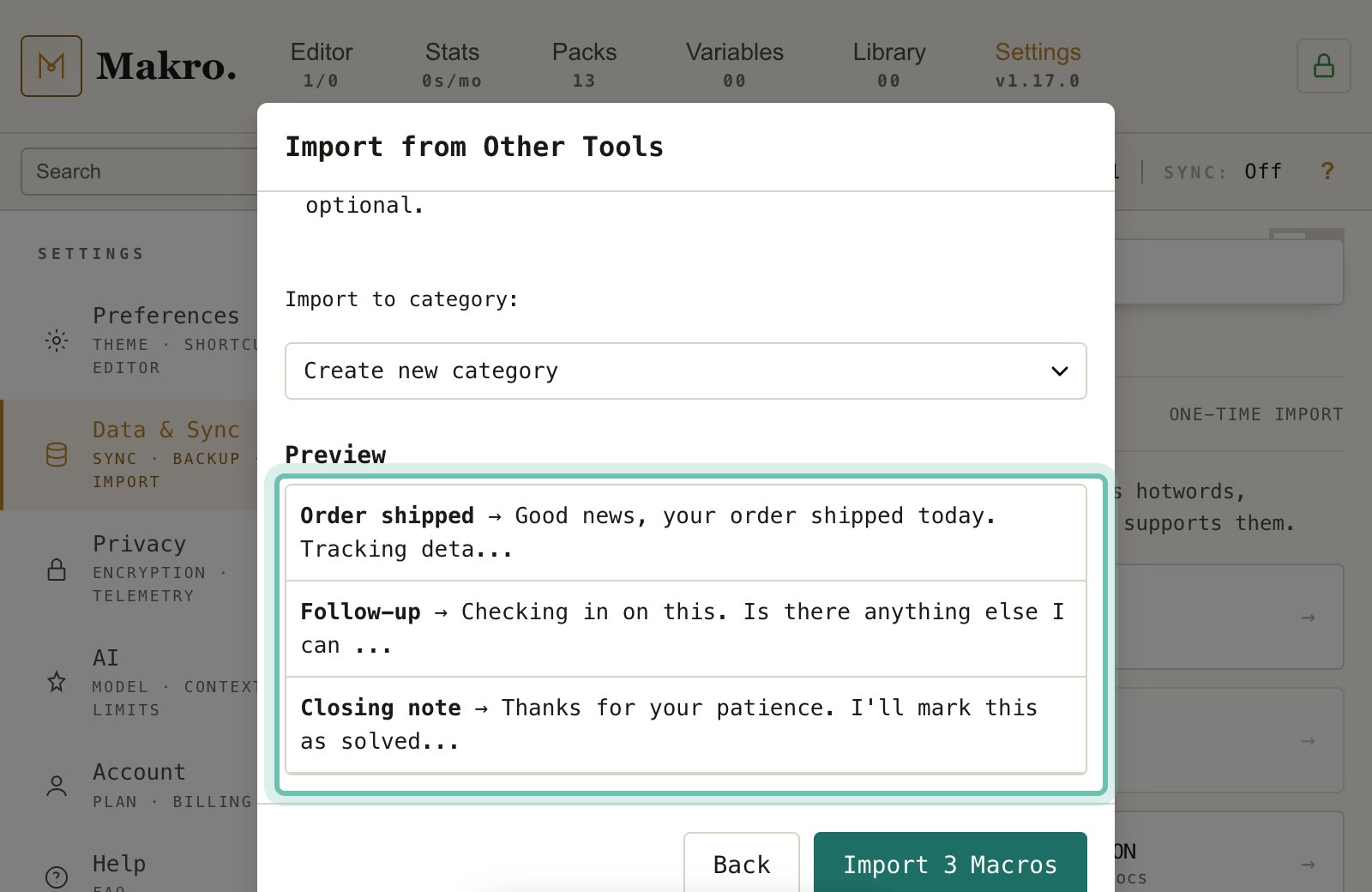
Click "Import 3 Macros" to add them to Makro. The number is how many snippets the preview found.
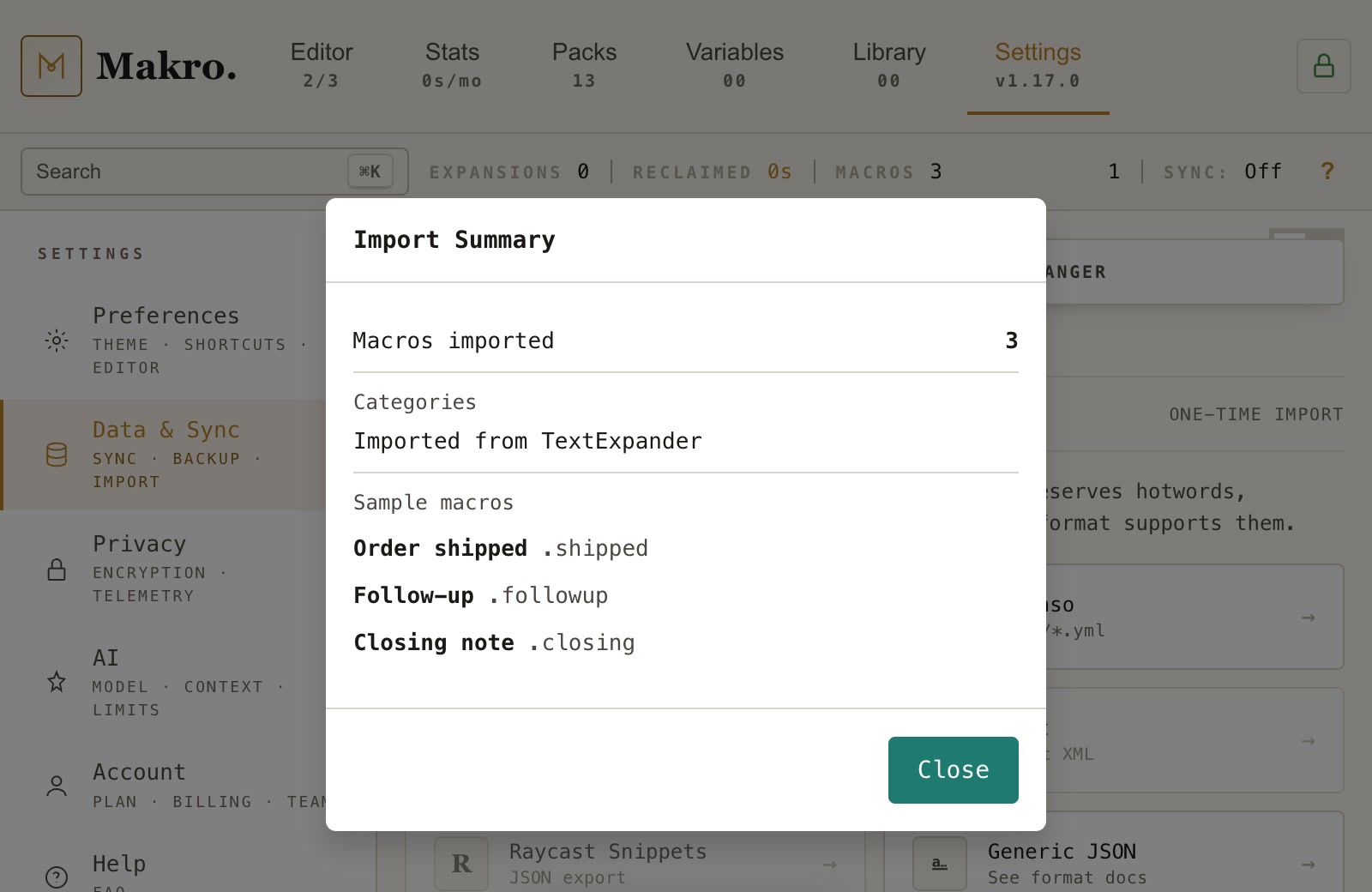
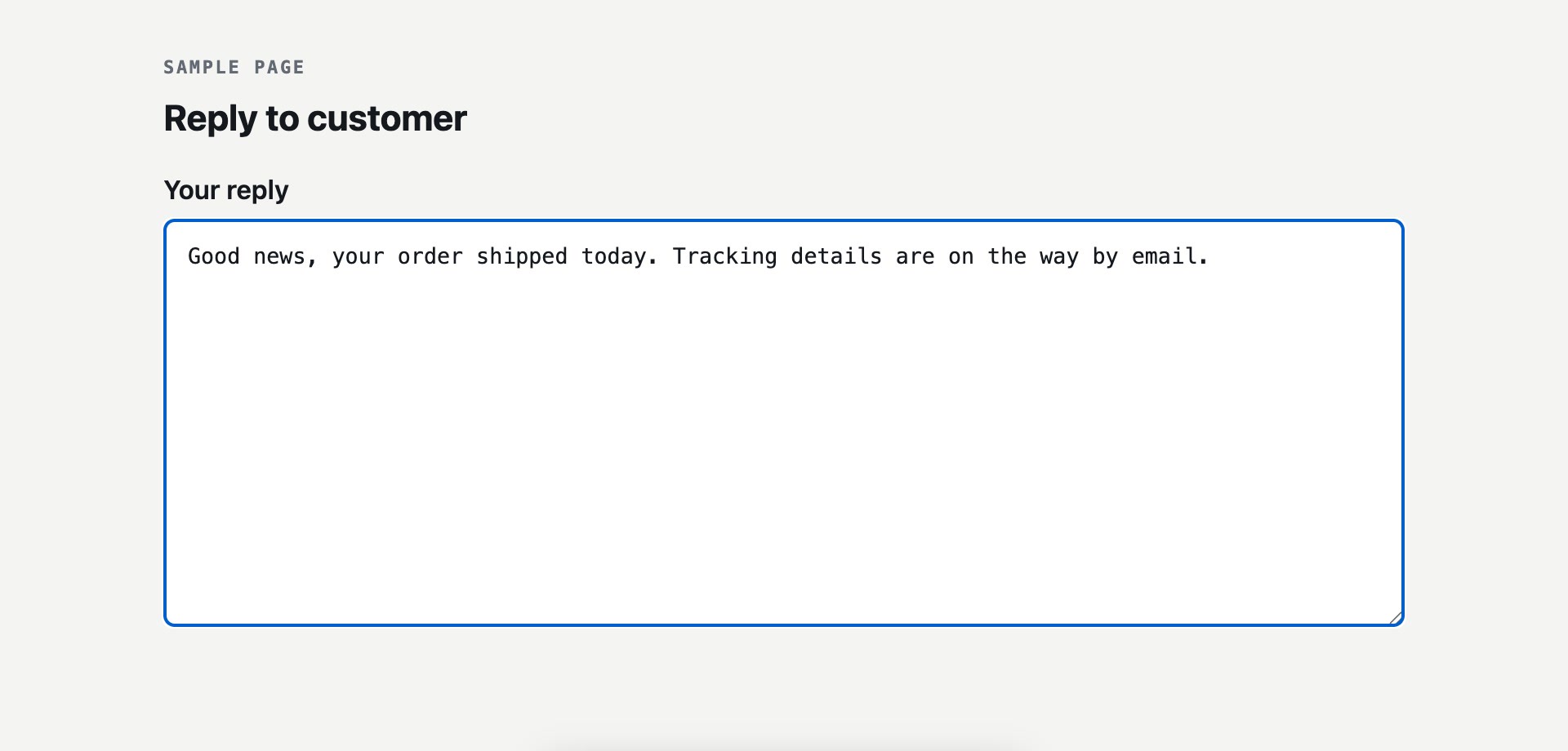
Your hotwords from the old tool now work in any text box. Try one: type .shipped.
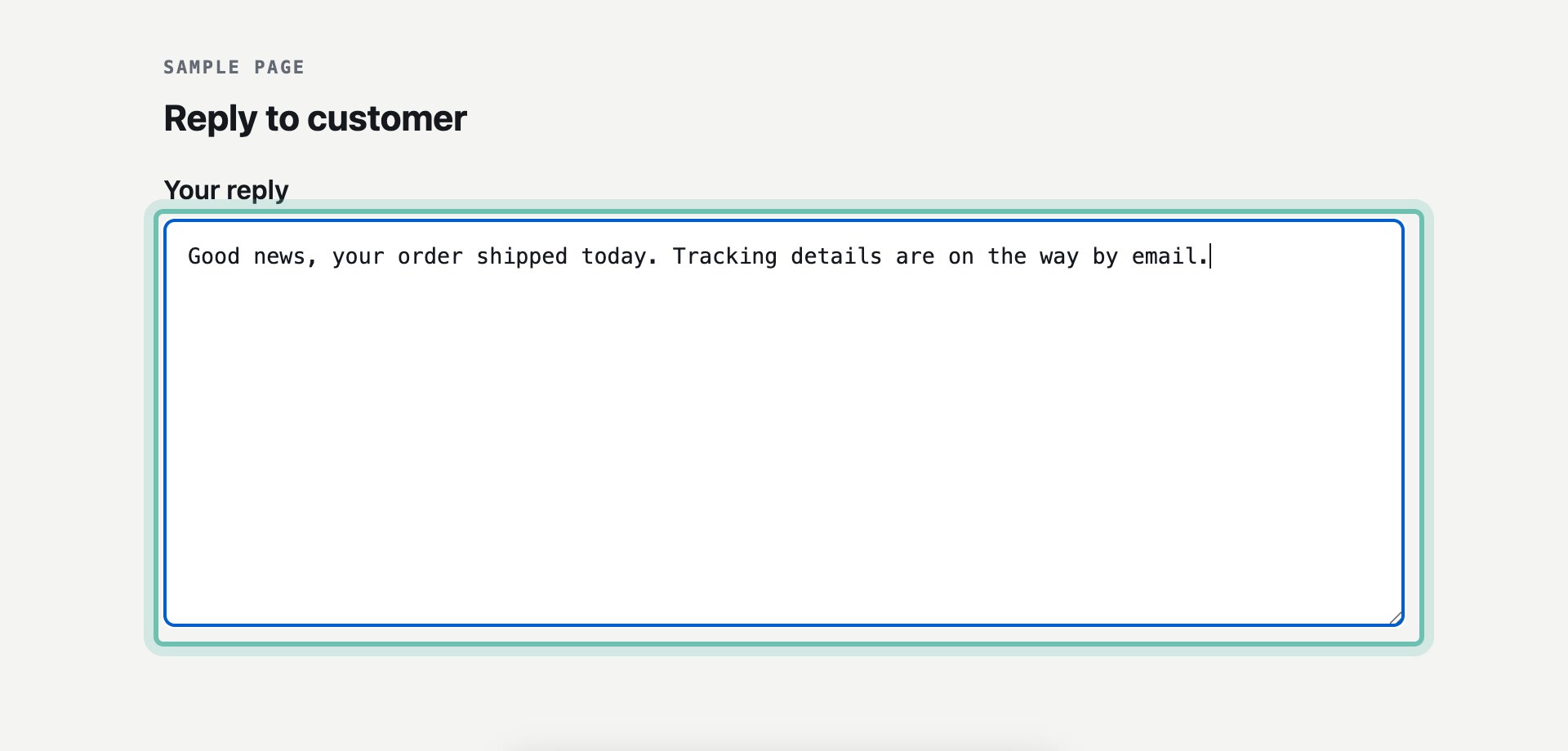
The imported snippet expands the same way it did before.